Agents
The Agents page lists AI agents compatible with Agent Client Protocol (ACP) and available in your organization.
Whether an agent is available to users and service accounts is governed by AI policies. The default policy initially makes all agents from this list available to everyone with AI access, so agents work out of the box until you configure policies to restrict them. To control which agents are available to specific users and service accounts, configure the default policy or create a custom one.
By default, the Agents page includes ACP-compatible agents sourced automatically from the global agent registry. These include the bundled agents – the agents JetBrains supports across its AI tools: Junie, Claude Agent, OpenAI Codex, Gemini CLI, Pi, and GitHub Copilot. These are the only agents you can route through a specific AI provider. If a new agent appears in the global registry, it is automatically added to the ACP Registry table. These agents cannot be deleted from the list.
Users can also add ACP-compatible agents locally in their IDEs if the relevant AI policy allows it.
AI providers for bundled agents
You can choose which AI providers serve bundled agents' requests. Each bundled agent uses one of the AI providers it supports, or none if you leave the provider Not set. By default, the provider is JetBrains AI, except for GitHub Copilot: its provider is Not set by default. You can switch an agent to a BYOK provider configured on the AI providers page.
The following table shows which providers each bundled agent supports:
Agent | |||||
Junie |
|
|
|
|
|
Claude Agent |
|
|
|
|
|
OpenAI Codex |
|
|
|
|
|
Gemini CLI |
|
|
|
|
|
Pi |
|
|
|
|
|
GitHub Copilot |
|
|
|
|
|


AI policies decide who can use an agent, and the provider you choose here decides what serves it. Each bundled agent has its own provider, so you can, for example, run OpenAI Codex through an OpenAI provider while Claude Agent keeps using JetBrains AI. You can set a provider only for bundled agents. Other agents from the registry and custom agents don't have this setting.
The provider also defines how an agent's usage is billed. Users and service accounts consume AI credits only through JetBrains AI. Requests to a BYOK provider don't consume AI credits, so AI credit limits don't apply to them. The third-party provider charges your organization for this usage directly.
You can leave the provider Not set for any bundled agent, which means no provider will serve the agent's requests. How such an agent behaves can differ between AI tools: a tool may hide it, show it as unavailable, or still let a user run it with their own authorization. To make an agent unavailable in all AI tools, remove it from an AI policy rather than leaving its provider Not set.
GitHub Copilot is the exception: with the provider Not set, users sign in to GitHub Copilot with their own GitHub accounts and use their own Copilot subscriptions. However, you still control who can use the agent through AI policies.
Set an AI provider for an agent
In the sidebar, under AI governance, select Agents.
If you don't see this page, or the controls on this page are inactive, make sure your role has the necessary permissions.
In the ACP Registry table, find the bundled agent you want to configure. Its current provider is shown in the Providers column.
In the Providers column, select a provider from the dropdown in the corresponding row. The list offers the providers that the agent supports: JetBrains AI and BYOK providers you have configured, along with the Not set option.
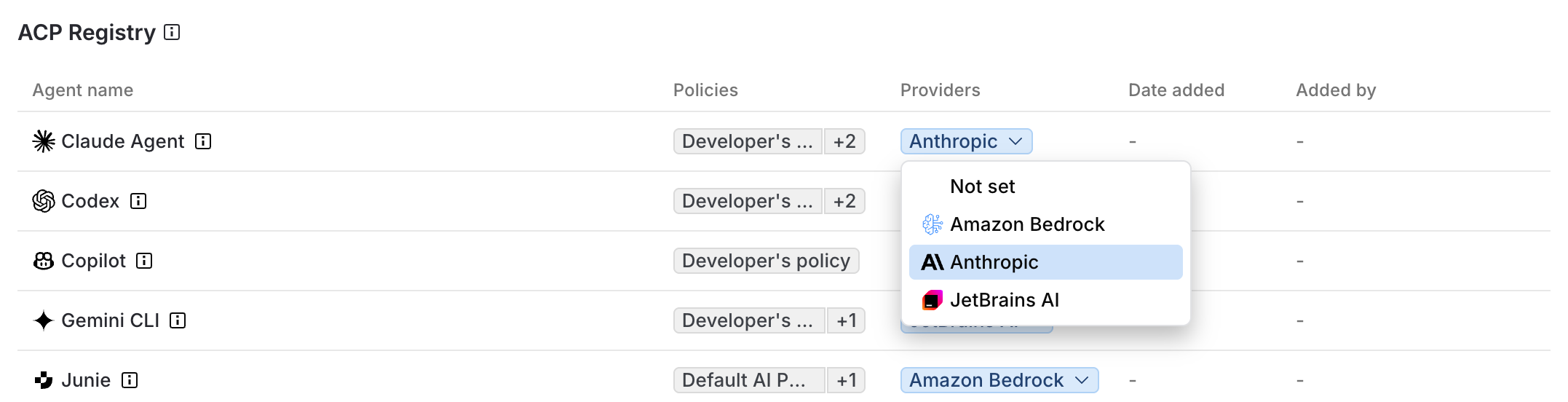
The change is saved automatically, and the new provider appears in the Providers column.
Custom agents
You can manually add custom ACP-compatible agents not listed in the global registry using a JSON configuration.
Add a custom agent
In the sidebar, under AI governance, select Agents.
If you don't see this page, or the controls on this page are inactive, make sure your role has the necessary permissions.
Click Add agent.
In the Add custom ACP agent dialog, paste or type the agent's JSON configuration.
The configuration must be valid JSON. For the full list of available fields, refer to the ACP agent format reference and the JSON schema.
JetBrains Console validates the following:
nameis present.icon, if present, is anhttps://URL or adata:image/...URI.repository, if present, is anhttp://orhttps://URL.
All other fields are accepted as is.
Click Add.
A success message appears in the lower right corner. The custom agent is now listed in the table.
Edit a custom agent
In the sidebar, under AI governance, select Agents.
If you don't see this page, or the controls on this page are inactive, make sure your role has the necessary permissions.
In the Custom agents table, find a custom agent you want to edit.
Click
 in the corresponding row and select Edit.
In the dialog, make the necessary changes to the JSON configuration.
Click Save.
A success message appears in the lower right corner.
Delete a custom agent
In the sidebar, under AI governance, select Agents.
If you don't see this page, or the controls on this page are inactive, make sure your role has the necessary permissions.
In the Custom agents table, find a custom agent you want to delete.
Click
in the corresponding row and select Delete….In the dialog, click Delete.
A success message appears in the lower right corner. The agent is removed from the table and all the affected AI policies.