Deleted Items
Issues, tickets, and knowledge base articles aren't permanently removed immediately after being deleted by a user. Recently deleted items can be restored by an administrator through the Deleted Items feature in the Server Configuration Settings.
By default, YouTrack retains deleted items for 15 days from the time they are deleted. Automatic cleanup permanently removes items after the retention period expires. The exact removal time depends on when cleanup runs. You can permanently delete items on the Deleted Items page before automatic cleanup removes them.
Retained Draft Records
When an issue is created from the New Issue form or through the REST API using a draft ID, YouTrack retains a deleted record of the original draft. This record is excluded from the normal Deleted Items list and can reserve the issue number even after the reported issue is permanently deleted.
Permanently deleting the reported issue from Deleted Items or through the REST API does not remove the retained draft record. Automatic cleanup removes the record after the deleted items retention period, which is 15 days by default. For this record, the retention period starts when the draft is reported as an issue, rather than when the reported issue is deleted.
Until cleanup removes the retained draft record, an import can assign a different issue number even when the original number appears to be available. For details, see Issue Numbering.
Deleted Items List
The Deleted Items page displays all recently deleted items that have the option of being restored.
The list displays:
Item ID
Item summary or title
Date/Time the item was deleted
You can search for recently deleted items in the search filter by entering either the exact item ID or a string to match within the summary/title.
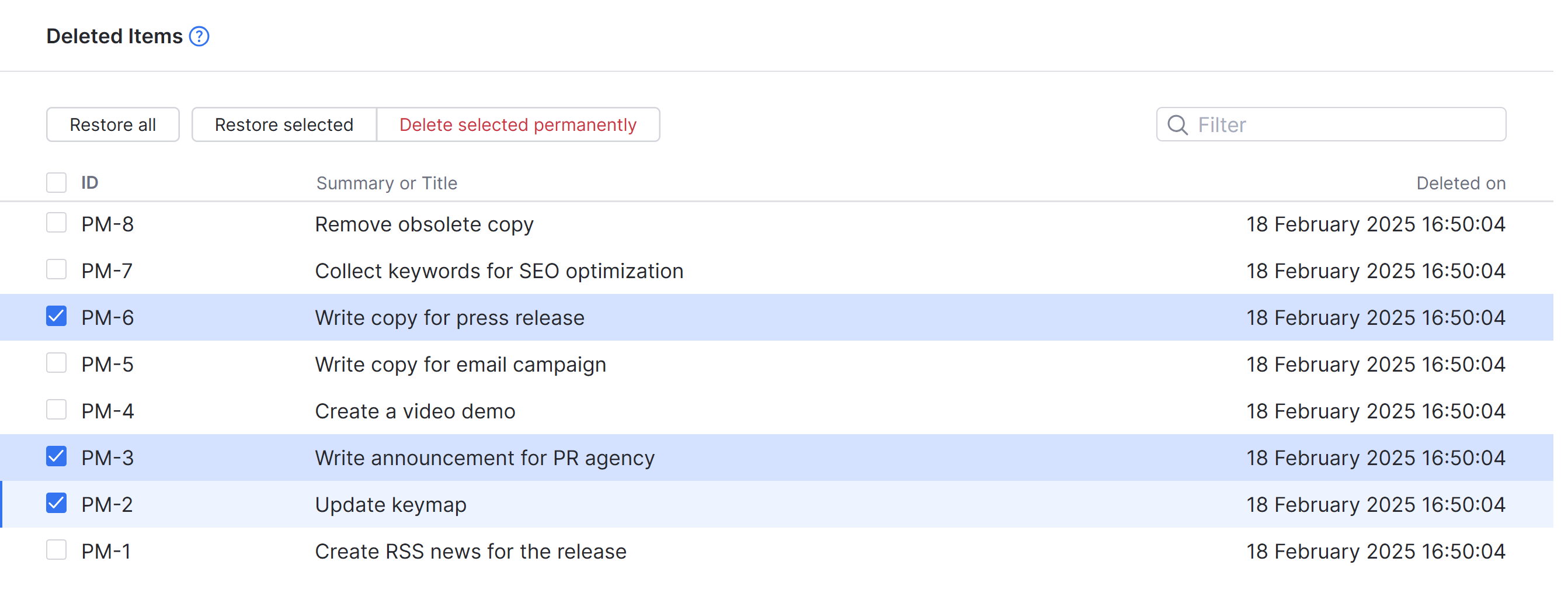
To access this page, open the  Administration menu and select . Scroll to the bottom of the Server Configuration tab and click the link.
Restore Deleted Items
Deleted items are restored in the state they were deleted. All field values, links, and attachments are restored with a restored item.
To restore deleted items:
From the main navigation menu, select
.Select the Server Configuration tab and click the View deleted items link.
A list of recently deleted issues, tickets, and knowledge base articles are displayed.
Select one or more items to restore.
Click Restore selected.
Click Restore all to restore all issues on the list.
Click Restore to confirm.
Permanently Delete Items
The Deleted Items feature can also permanently delete selected items. Items that are permanently deleted are removed from the database and no longer have the option of being restored at a later time.
To permanently delete items:
From the main navigation menu, select
.Select the Server Configuration tab and click the View deleted items link.
A list of recently deleted issues, tickets, and knowledge base articles are displayed.
Select one or more items to permanently delete.
Click Delete selected permanently.
Click Delete to confirm.
This action cannot be undone.
Selected items that include attachments permanently delete the attachment as well.
The YouTrack database cleanup process and resource utilization monitor run asynchronously. This means that after an item is permanently deleted, the system may take up to several hours to sync and show freed space in the database.
Restored Item Records
After an item has been restored, a record of the action can be found in:
the issue, ticket, or article Activity Stream.
the The Notification Center of impacted users.
the Activity Feed widget if the Deleted/Restored issues setting is enabled.