Output and Results
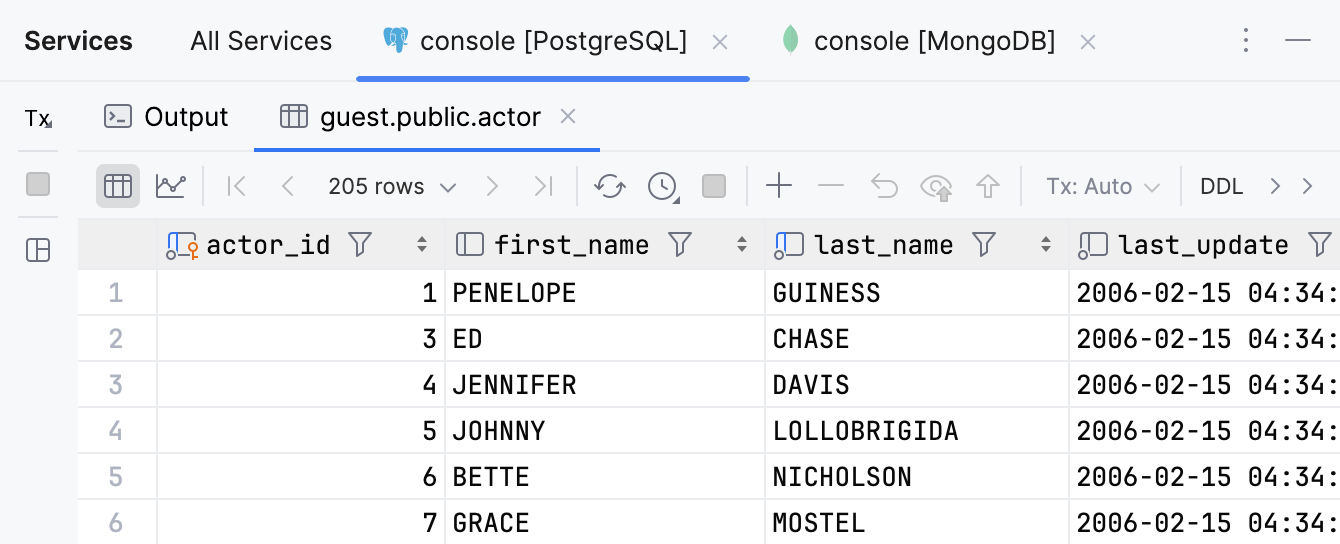
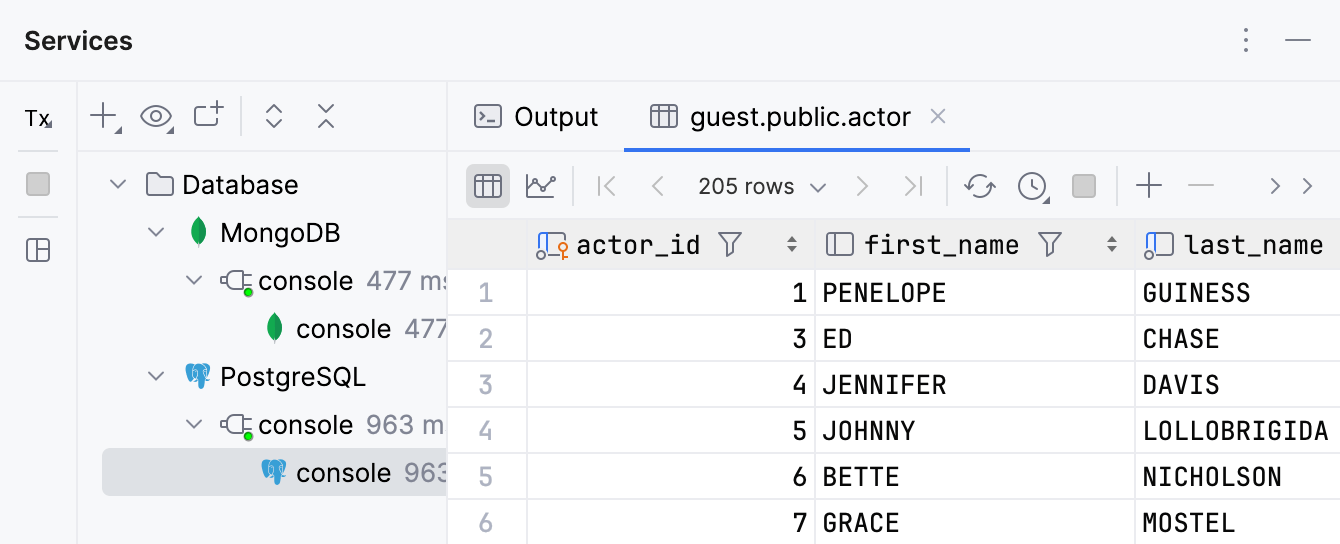
The settings on this page define how the query results are displayed in the Output and Result tab of Services tool window, and in the Query consoles. For more information about viewing query results, refer to Query results.
Output
Item | Description |
|---|---|
Show timestamp for query output | Show timestamps for query output in the Output tab of the Services tool window. By default, timestamps are hidden. |
Enable DBMS_OUTPUT | Enables |
Results
Item | Description |
|---|---|
Show results in | Specifies where query output and results are displayed.
|
Open tool window after query execution | Selects which types of output automatically open the Services tool window after query execution.
|
Move focus to the tool window in window mode | After running a statement, switch focus to the tool window if its View Mode is set to Window. If this setting is off with the View Mode set to Window, the focus will stay in the query console, and you will need to click the tool window to interact with it. To set window mode for the tool window, right-click the tool window tab and select . |
Activate the output pane only for the selected file | Stay on the output pane of the selected query console or file in the Services tool window. If this checkbox is cleared, the focus will switch to the node of the query console in the Services tool window that finished processing of a query. For example, you have two query consoles: console_1 and console_2. In console_1, you have a large list of Consider the following videos with
|
Result title marker in comments | Enables the feature of defining a tab title in the comment section before the query. In the Treat text as title after field, you can reserve a combination of symbols or characters, and any text after this combination will be treated as a tab title. By default, no combination is used, so any text after For more information about custom titles for query result tabs, refer to Use custom titles for tabs with results. |
Services Tool Window
Item | Description |
|---|---|
Open new Services tab for sessions | Create a new tab for a data source sessions and output results.
|
Show internal session in Services tool window | Shows the introspection and other internal sessions on the session list. |