Tables
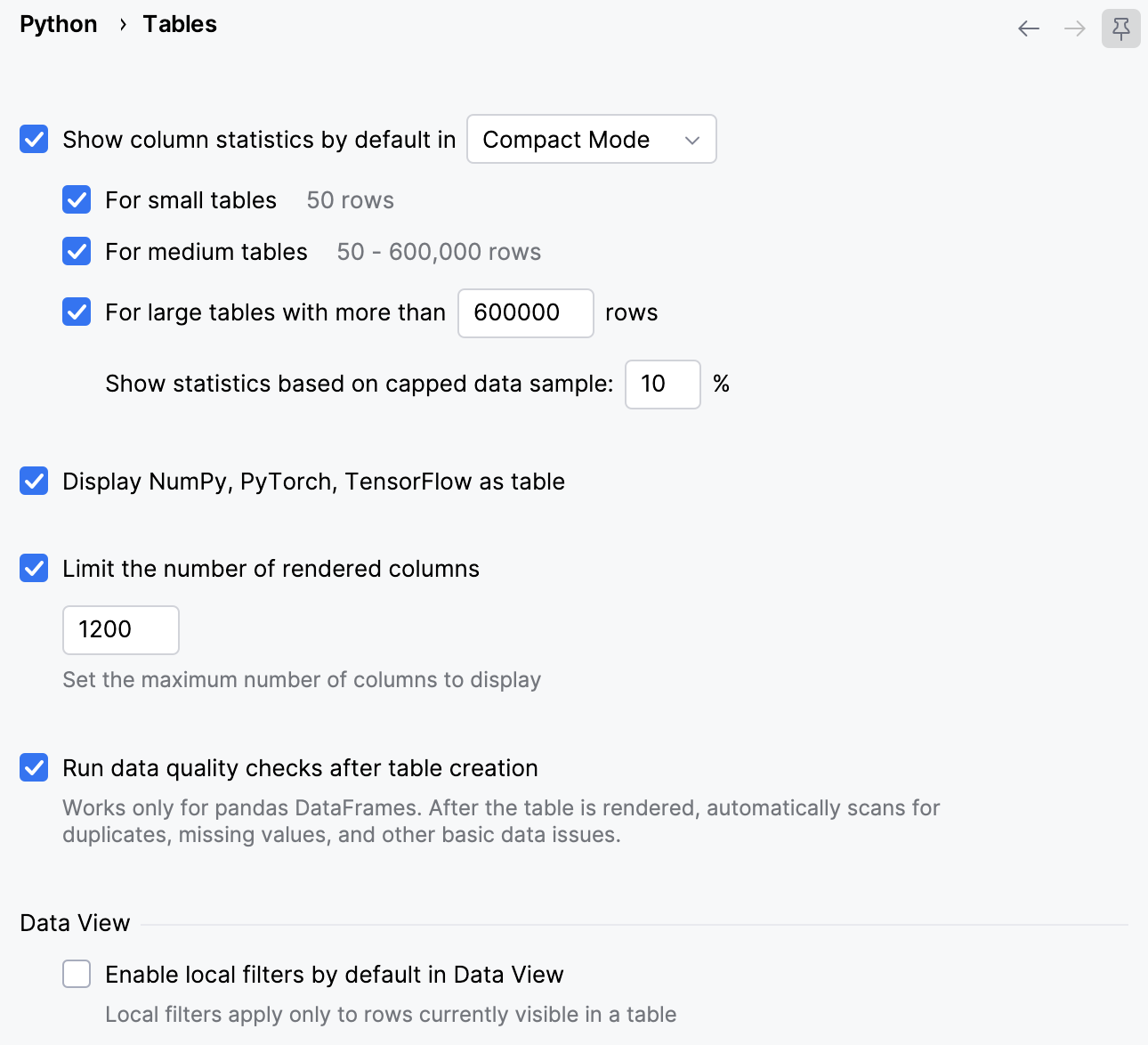
Item | Description |
|---|---|
Show column statistics by default | Select this checkbox to display column statistics automatically. Select a display mode from the list next to the checkbox:
Then select the table sizes for which you want to show statistics:
|
Show statistics based on capped data sample | For large tables, calculate statistics using only a sample of the data. Specify the percentage of rows to include in the sample, from 1 to 100. The default value is 10%. The sample has no more than 2,000,000 rows and no more than 50,000,000 cells. This option is available only when For large tables with more than ... rows is selected. When PyCharm calculates statistics from a sample, the table header shows sampled statistics. Click it to see the sample size and to change the sample percentage. |
Display NumPy, PyTorch, TensorFlow as table | Select this checkbox if you want NumPy, PyTorch and TensorFlow arrays and tensors to be displayed as tables. |
Limit the number of rendered columns | Set the maximum number of columns to display for a table. |
Run data quality checks after table creation | Select this checkbox to automatically run basic data quality checks after a pandas DataFrame is rendered as a table. For more information, refer to Detect and fix data issues. |
Enable local filters by default in Data View | Select this checkbox to enable local filters for filtering rows based on column values. |