Pytest
PyCharm supports pytest, a fully functional testing framework.
The following features are available:
The dedicated test runner.
Code completion for test subject and pytest fixtures.
Code navigation.
Detailed failing assert reports.
Support for the Python versions that PyCharm supports.
Multiprocessing test execution.
By default, the suggested default test runner is unittest. So, to utilize pytest, you need to make it the default test runner first.
Install Pytest
Go to the Python Package tool window
Start typing
pytestin the Search field of the Python Package tool window. Locate the package in the list of the available packages and click Install.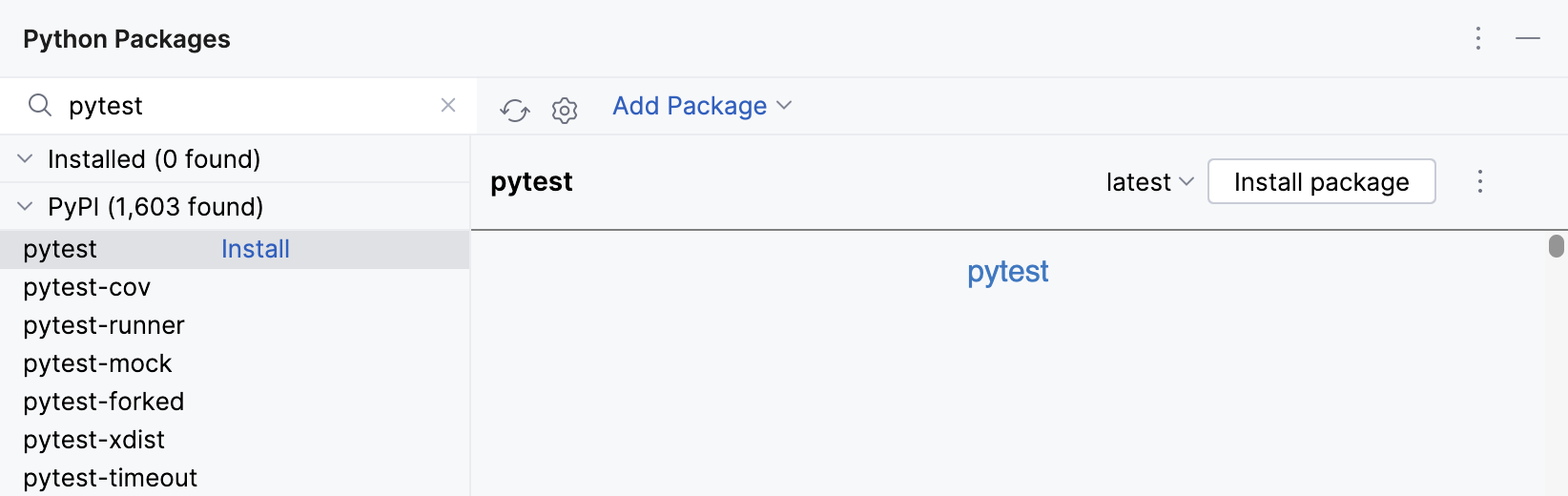
Once the pytest package is installed, PyCharm detects it and makes it the default project test runner. At any time you can change a test runner in the project settings.
Now, that pytest is set as the default testing framework, you can create a small test for the Car class. Let's create a pytest test to check the brake function.
Create a test
Create a Python project.
In the main menu, go to File | New, choose Python file, type car.py, and click OK.
Copy and paste the Car class into the car.py file.
In the editor, place the caret at the
brakemethod declaration.Do one of the following:
Go to .
From the context menu, choose .
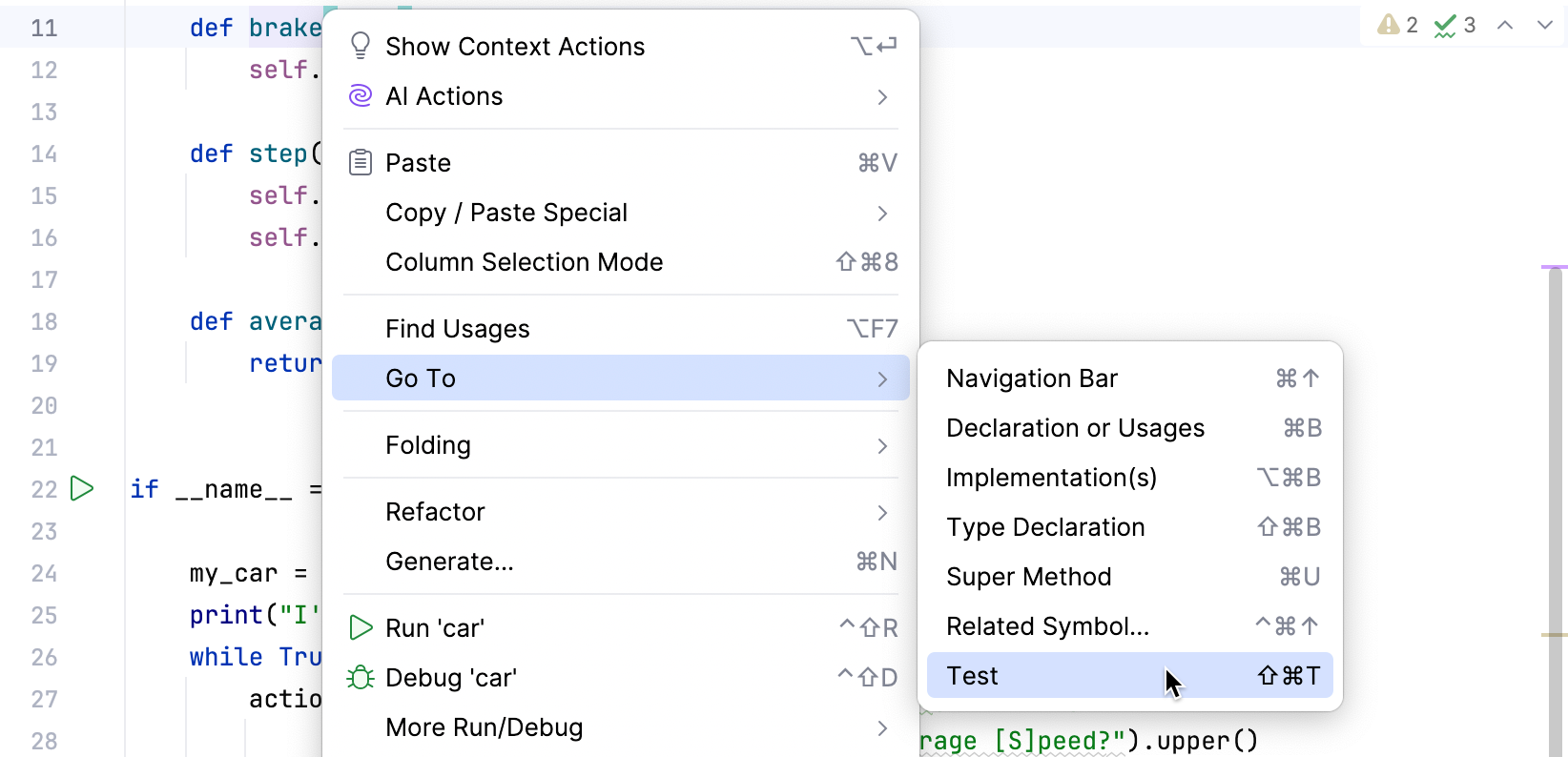
Press Ctrl+Shift+T.
PyCharm shows the list of available tests.
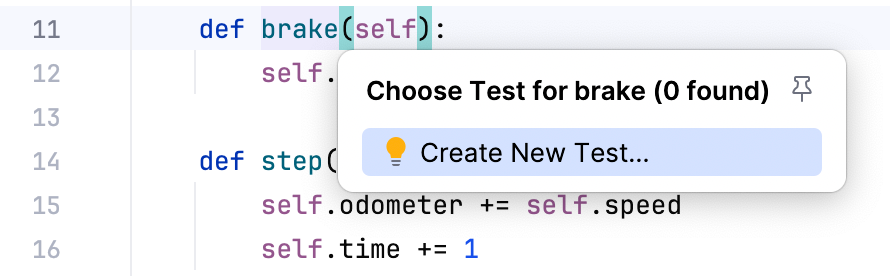
Click Create new test.
The Create Test dialog opens.
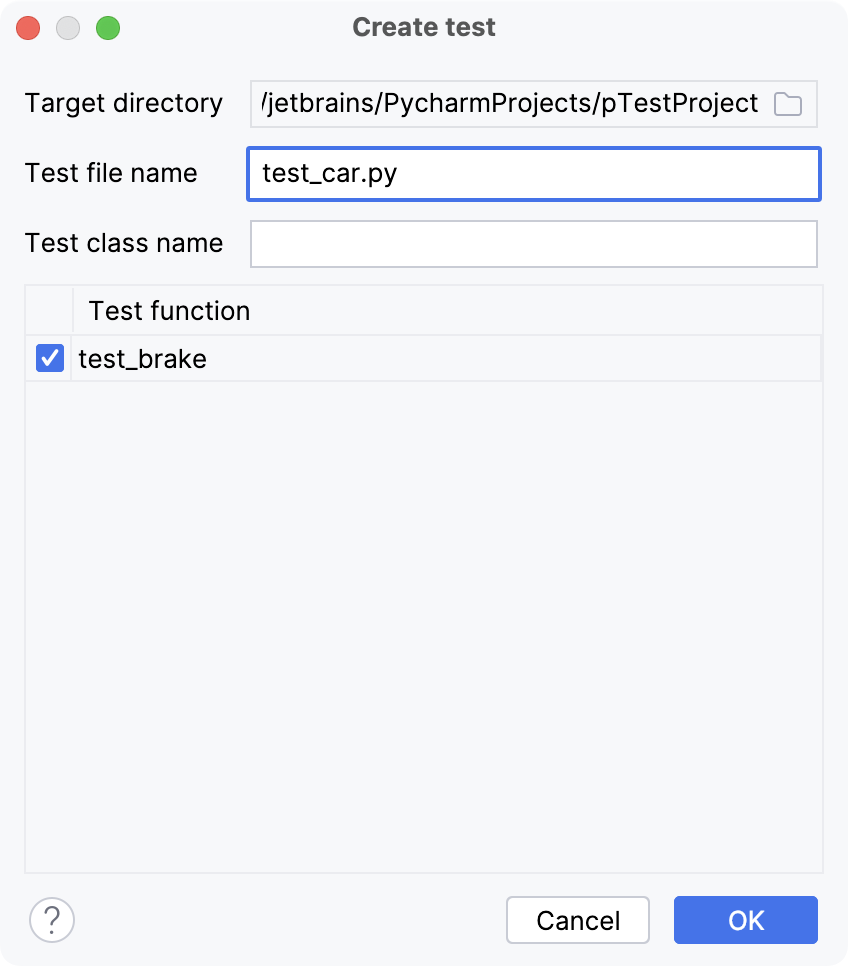
In the Create Test dialog, specify the following settings:
Target directory, where the new test class will be generated.
The name of the test file (in our example, test_car.py), and the name of the test class if needed.
Select the checkboxes next to the methods you want to include in the test class.
Note that if you place the caret within a method, only this method name is included in the list. Also, mind the naming convention: the test method has the
testprefix. The Run Test icon will appear in the editor gutter for all methods with such a prefix.
Click OK when ready. PyCharm generates the test file in the specified location.
PyCharm automatically generates a test file with the test method template. Replace the template code with the code that sets the initial speed value of
Carto 50 and checks if speed gets properly set to 45 after thebrake()function execution.from car import Car def test_car_brake(): car = Car(50) car.brake() assert car.speed == 45
Note that PyCharm recognizes the test subject and offers completion for the Car class' instance.
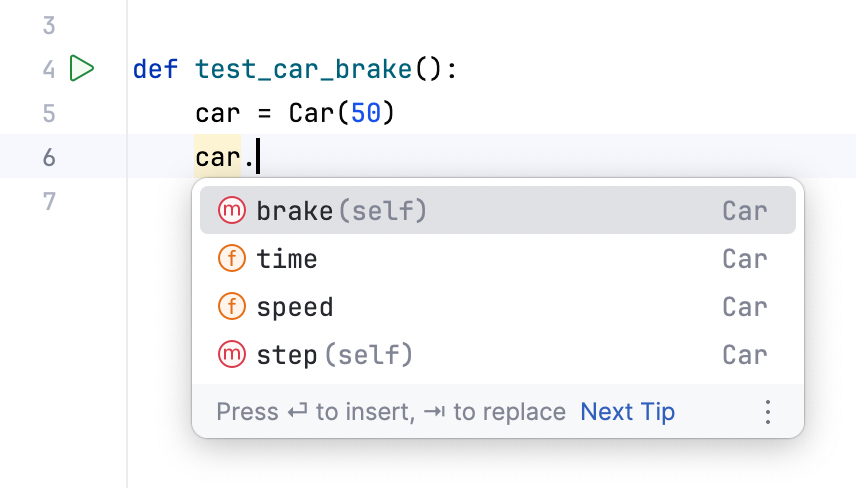
Although Go To Test Subject and Go To Test commands of the context menu are not supported for pytest, you can navigate to the tested code in car.py by using the Go To Declaration Ctrl+B command.
Run a test
Click
 to run the test:
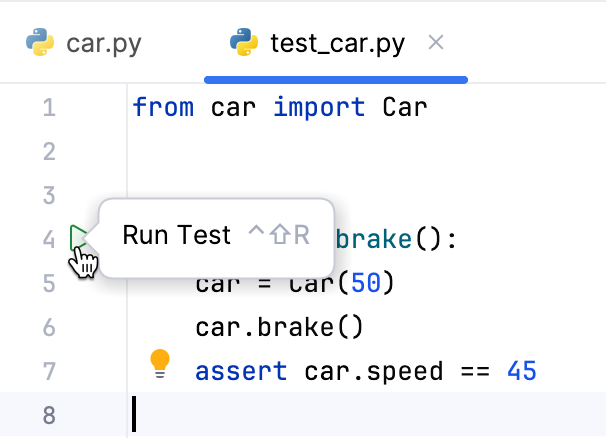
Note that PyCharm automatically creates a pytest Run/Debug configuration:
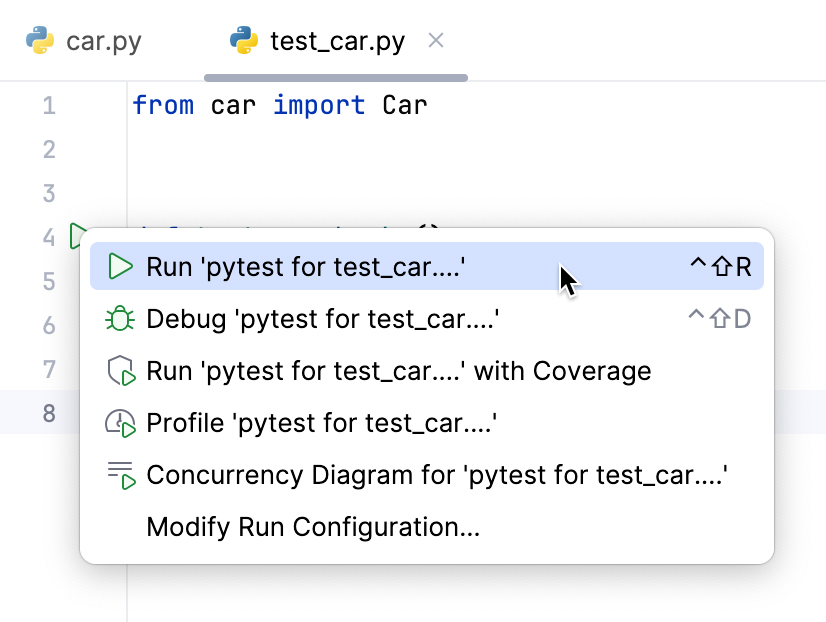
Select Run pytest for test_car_pytest to execute the test.
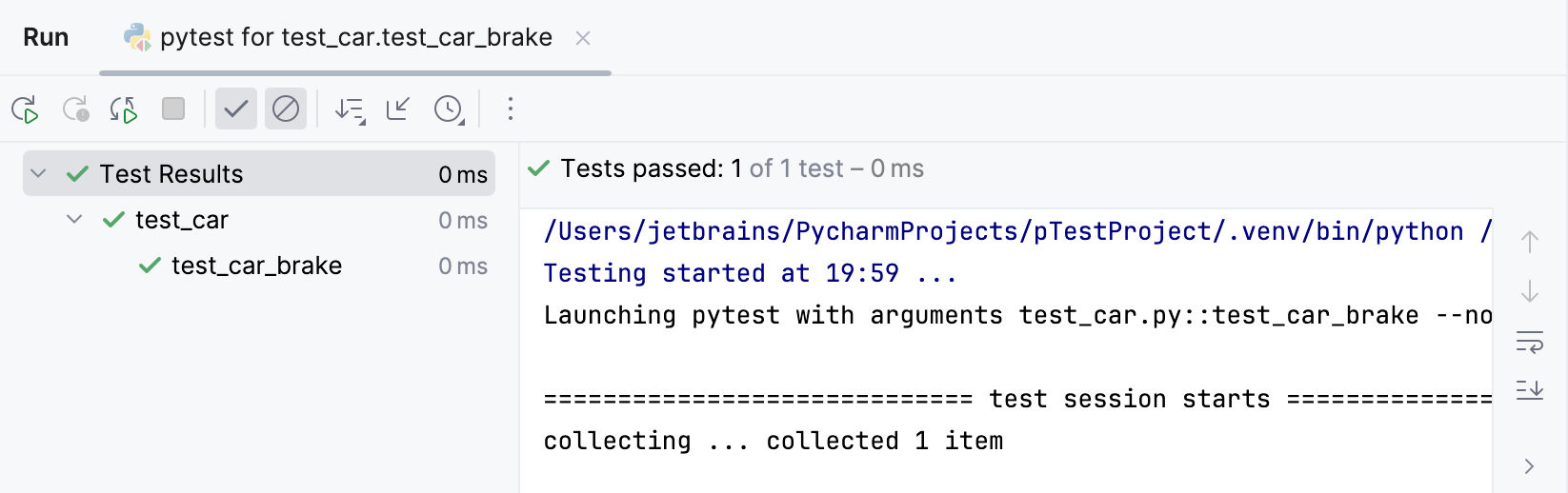
Inspect test results:
Alter the
assertstatement to the following:assert my_car.speed == 4599.Rerun the test to evaluate the assert failing report:
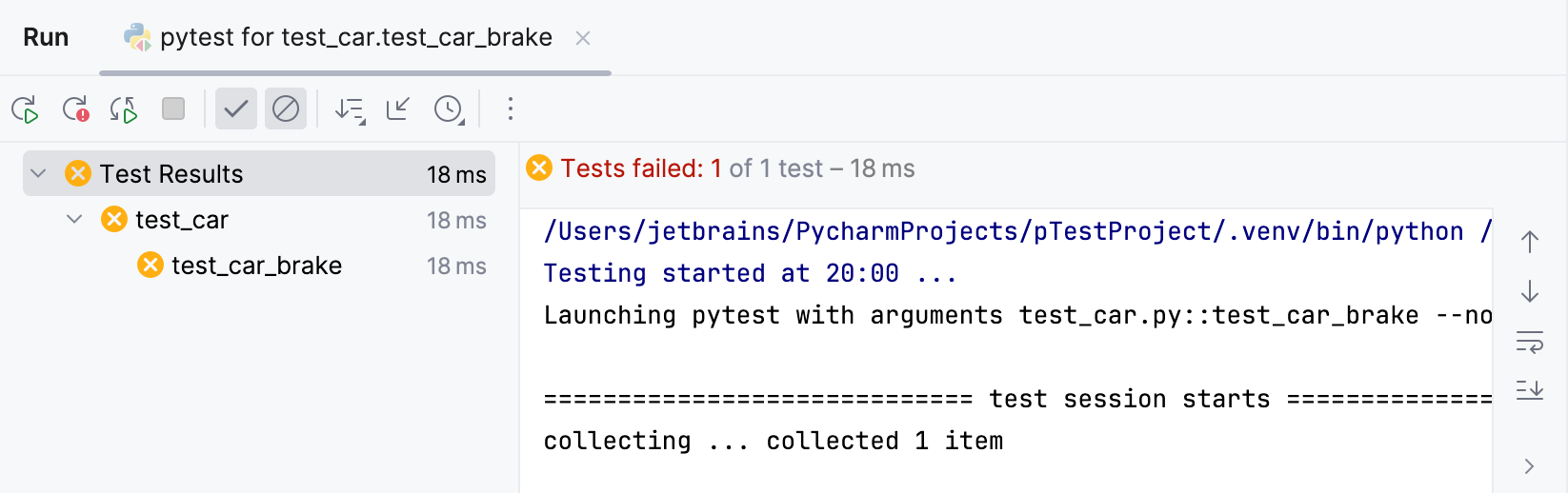
Note that pytest provides an explicit report on the failure.
Debug a test
Set a breakpoint in the test, for example, on the
car.brake()line oftest_car_brake.Click
in the gutter next to the test and select .PyCharm runs the test in the debug mode and suspends it at the breakpoint. Inspect the variables in the Debug tool window and step through the code. For more information, refer to Examine suspended program.
To make PyCharm stop on every failed test, refer to Debug failed tests.
With pytest fixtures you can create small test units that can be reused across the testing module. All you need is to mark a reusable unit with @pytest.fixture.
Use fixtures
Modify your pytest test as follows:
import pytest from car import Car @pytest.fixture def my_car(): return Car(50) def test_car_accelerate(my_car): my_car.accelerate() assert my_car.speed == 55 def test_car_brake(my_car): my_car.brake() assert my_car.speed == 45my_car()is a fixture function that creates aCarinstance with the speed value equal to 50. It is used intest_car_accelerateandtest_car_braketo verify correct execution of the corresponding functions in theCarclass.Note that the
my_carfixture is added to the code completion list along with other standard pytest fixtures, such astempdir.Click either of the
icons, or run the entire test module.
You can enable sharing fixture instances across tests using the scope parameter of the fixture function. For more information about pytest fixtures, refer to pytest fixtures documentation.
You might want to run your tests on the predefined set of data. PyCharm supports test parametrization implemented in pytest through @pytest.mark.parametrize.
Apply parametrization
let's create a set of speed values to test
car.accelerateandcar.brakefunctions:speed_data = {45, 50, 55, 100}Modify the test code to the following:
import pytest from car import Car speed_data = {45, 50, 55, 100} @pytest.mark.parametrize("speed_brake", speed_data) def test_car_brake(speed_brake): car = Car(50) car.brake() assert car.speed == speed_brake @pytest.mark.parametrize("speed_accelerate", speed_data) def test_car_accelerate(speed_accelerate): car = Car(50) car.accelerate() assert car.speed == speed_accelerateNote that PyCharm detects the newly created parameters and adds them to the completion list.
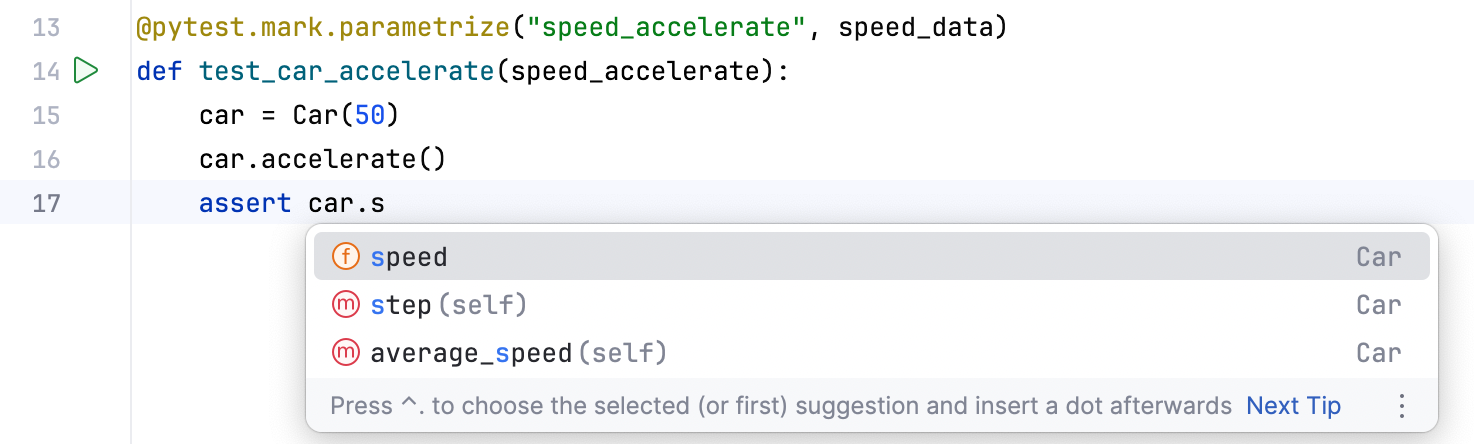
Run the test for the
car.brake()function. You should expect the following test report: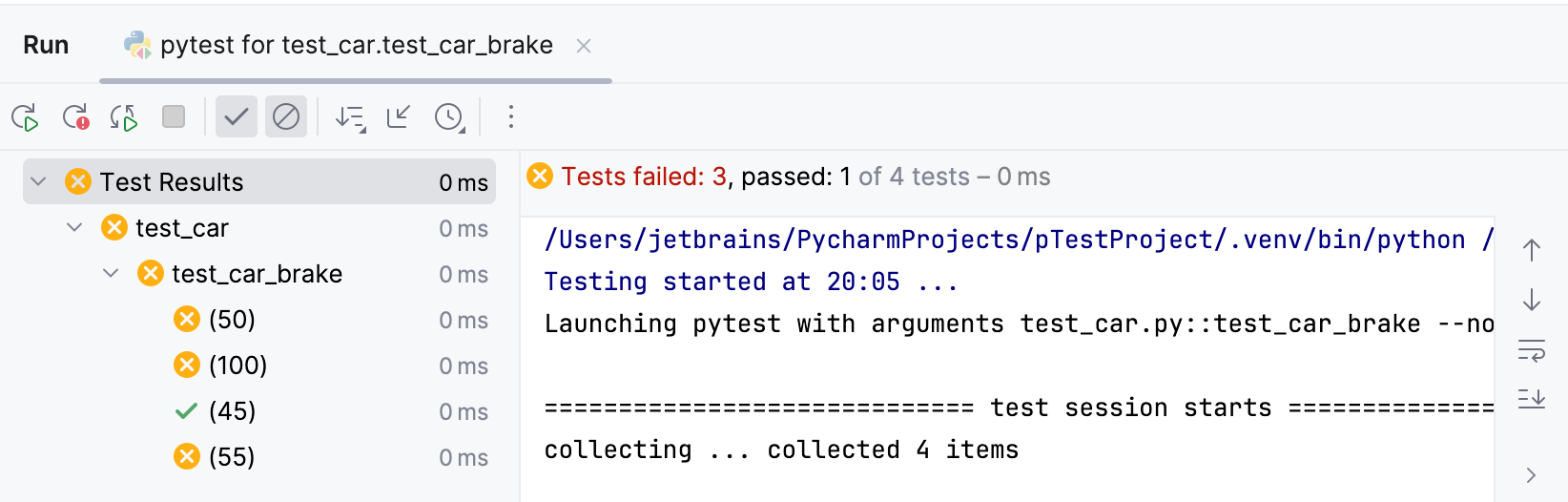
You can also run the test for car.accelerate() function to ensure that it fails for all speed values but 55. For more information about parametrized test, refer to pytest documentation.
Fix import errors in tests
If your project keeps the application code and the tests in separate directories, for example, src and tests, pytest can fail to import the tested modules and report ModuleNotFoundError. To fix this, add the directory with the application code to PYTHONPATH in one of the following ways:
Mark the src directory as a source root: right-click it in the Project tool window and select . For more information, refer to Content root.
Make sure that the pytest run/debug configuration adds source roots to
PYTHONPATH: click Modify options and check that Add source roots to PYTHONPATH is selected. The Add content roots to PYTHONPATH option adds the content roots, such as the project root directory. Both options are selected by default.Specify the
pythonpathoption in the pytest configuration file, for example, in pyproject.toml. This option is available in pytest 7.0 and later, and it also works when you run pytest outside PyCharm.[tool.pytest.ini_options] pythonpath = ["src"]For more information, refer to the pytest documentation.
Also check the Working directory field of the run/debug configuration: relative paths in your tests are resolved against this directory.