Project security
To prevent potential security risks, PhpStorm lets you decide how to work with a project or a file if you are not sure about its source. PhpStorm warns you about tasks or configurations that will be executed and lets you configure sources that you can trust.
Open a project or a file from unknown sources
When you open any project or file, PhpStorm immediately lets you decide how to handle a project or a file that contains unfamiliar source code.
When you open a project or a file for the first time, the IDE shows the Trust dialog. This helps to ensure that the project or the file is safe to perform the following actions:
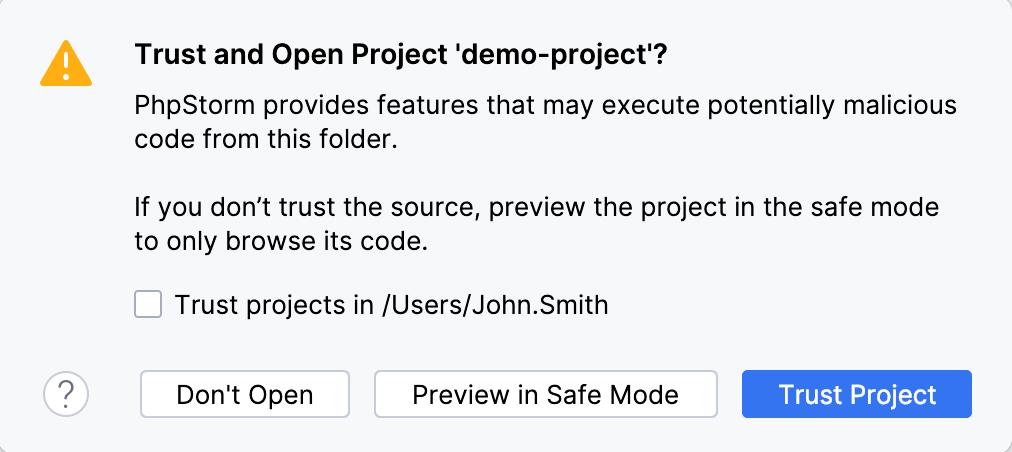
Preview in Safe Mode: in this case, PhpStorm opens the project in Safe Mode, meaning you can browse the project's sources, but there are restrictions on executing any tasks or running your project.
For more information about Safe Mode preview limitations, refer to Safe Mode preview limitations.
PhpStorm notifies you about Safe Mode on top of the editor area.
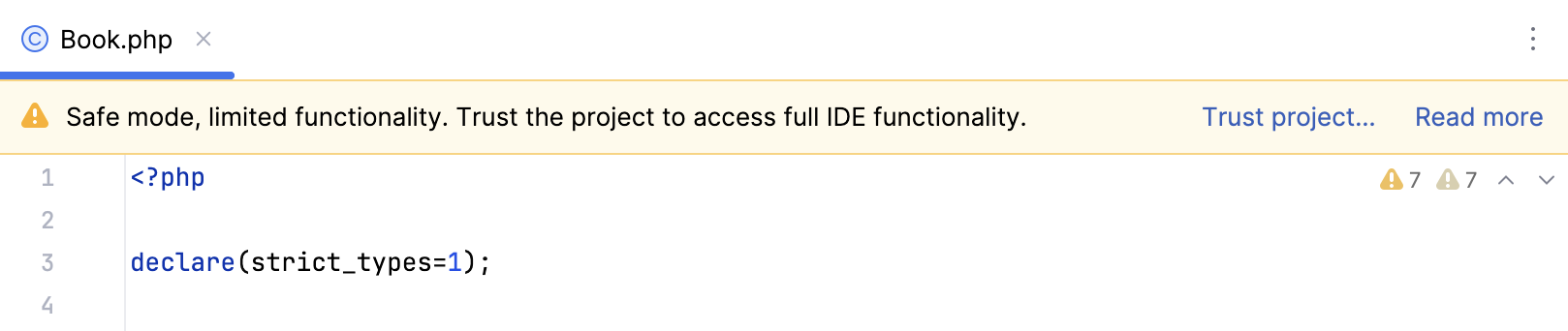
If at this point you want to trust a project, click the Trust project… link and load your project.
Alternatively, in the main menu, go to or press Shift twice to open the search window and type Trust project.
Trust Project: in this case, PhpStorm opens and initializes the project, resolves project plugins, adds dependencies, and enables all PhpStorm features.
Don't Open: in this case, PhpStorm cancels the action.
Startup tasks
When you open a project created on a different machine, it might contain some scripts or tasks that are executed during the opening process. If such tasks are found, PhpStorm displays a notification suggesting that the code you are about to execute might be harmful.
You can review what tasks will be executed and modify the settings.
Review the startup tasks
In the Settings dialog (Ctrl+Alt+S) , go to .
On the Startup Tasks settings page, you can review and modify the startup tasks.
Safe Mode preview limitations
If you open a project in Safe Mode, the following limitations will apply:
Startup tasks: any scripts or tasks that are executed during the opening process are disabled.
VCS support: VCS support is fully disabled.
File Watcher scripts will not wake up and run corresponding tools.
Executing Composer commands is disabled.
Refreshing the versions of the configured PHP command-line tools is disabled.
Refreshing the versions of the configured PHP test frameworks is disabled.
Working with the configured PHP code quality tools is disabled.
Database Tools and SQL: Database connections are disabled.
Trusted locations
You can configure what sources PhpStorm should consider safe and load such projects automatically during the opening process.
Configure trusted locations
In the Settings dialog (Ctrl+Alt+S) , go to .
On the Trusted Locations settings page, specify the local directories that the IDE should trust. Click OK to save the changes.
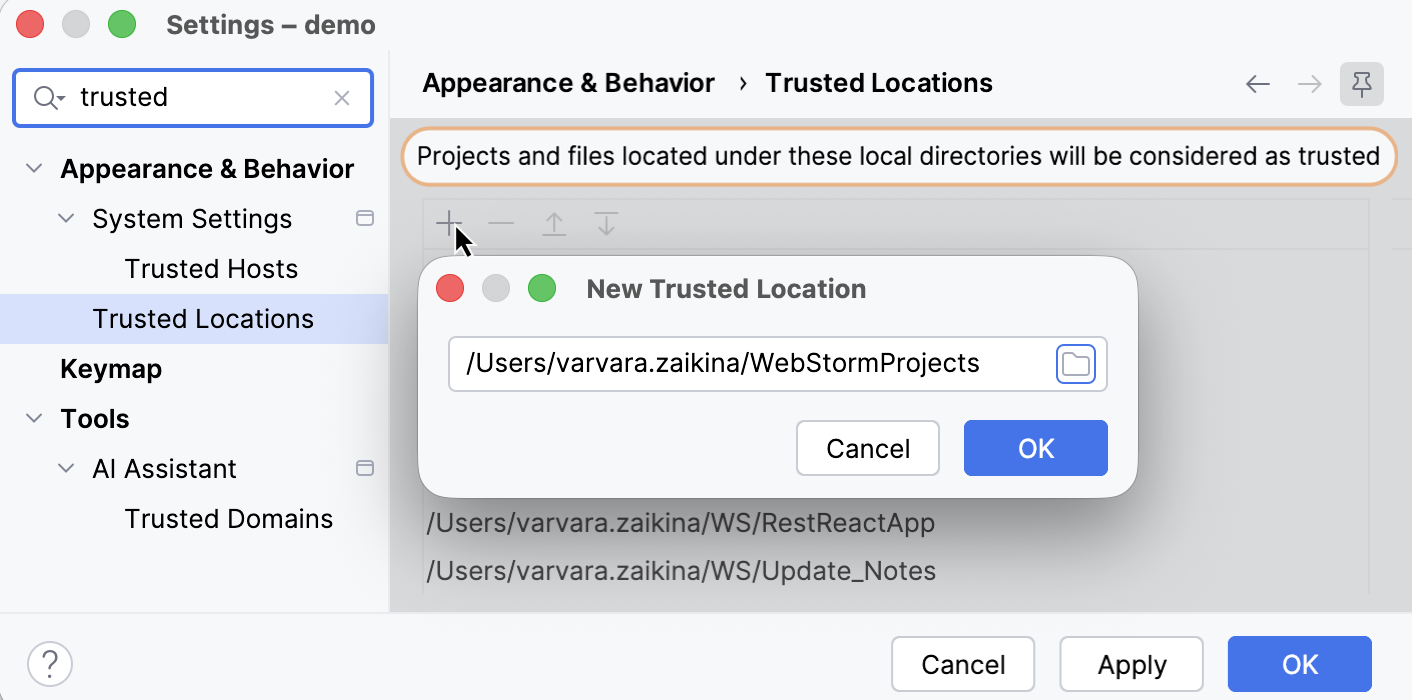
The next time you open a project from one of those locations, PhpStorm will implicitly trust it.