Connect to a web server
Choose a deployment configuration based on where you want to access files:
In-place server configuration.
In an in-place server configuration, you open a project folder from an existing local web server's document root directly in PhpStorm. The configuration maps project files to URLs, and the server uses those files directly. Unlike with a local server configuration, you do not upload, download, or synchronize files between the PhpStorm project and a separate folder in the server file structure.
Local server configuration.
A local server serves files from a local or mounted folder at a local URL. In a local server configuration, you develop your application in a PhpStorm project, then upload the project files to the server’s document root, the folder from which the server serves files.
Remote server configuration.
In a remote server configuration, the server runs on another computer (a remote host). To access files on the remote server, use FTP/SFTP/FTPS/WebDAV protocols.
Create separate configurations for different destinations. Each configuration has its own connection settings and mappings between project folders and destination folders.
If you need to deploy code to multiple servers, you can create a server group and avoid deploying to each server individually.
Default server access configuration
You can set a server configuration as default to have PhpStorm silently apply it in the following cases:
Manual upload and download of files without choosing the target host.
Comparing local files and folders with their remote versions.
In the Settings dialog (Ctrl+Alt+S) , go to , select the required server access configuration in the central pane, and click
 on the toolbar.
Alternatively, click the Default Deployment Server widget in the PhpStorm status bar and select the desired server or server group from the popup menu.
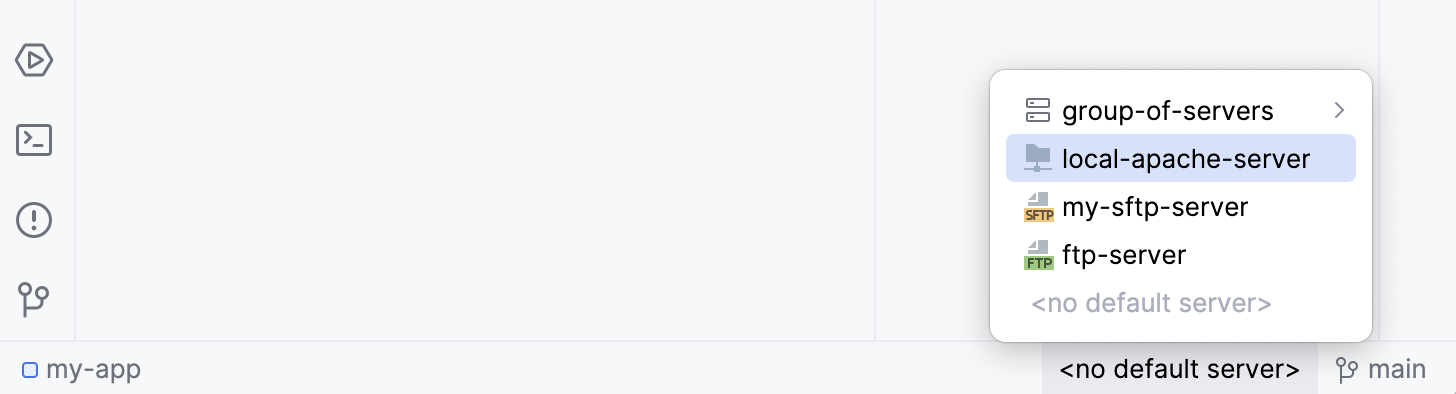
To configure the upload to the default server, go to .