Users
Before you can give users access to company resources, you must first add them to your organization.
Add users
In the sidebar, under Users and access, select Users.
If you don't see this page, your role doesn't have the necessary permissions.
In the top-right corner, click Add user.
In the dialog, enter the user's name and email.
Click Add user.
Remove users
In the sidebar, under Users and access, select Users.
If you don't see this page, your role doesn't have the necessary permissions.
Click the ... menu next to the user's name and select Remove user from organization.
To remove multiple users, select checkboxes next to the users and click Remove from organization in the footer.
Alternatively, open the user's profile and click Remove from organization.
When you remove a user, the user loses access to all resources assigned through the organization, such as product licenses and AI access.
Browse and search users
For each user, the table lists their Organizational roles and Groups.
In the sidebar, under Users and access, select Users.
If you don't see this page, your role doesn't have the necessary permissions.
Use the search field to filter users by name or email. The table updates as you type.
The search matches any part of a user's full name or email address and isn't case-sensitive. A misspelling or a reordered name returns no results:
ohnfinds John Doe, butDoe Johndoes not.To filter by group or role, click Groups or Roles above the table and select one or more groups or organization roles.
Selections within one filter are combined, which widens the results rather than narrowing them: a user matches any of the selected groups, or any of the selected roles. You can use the search field together with an active filter, in either order.
You can use either the Groups filter or the Roles filter, but not both at the same time. To switch filters, clear the active filter first. For details, see Filter users by group or role.
To view the user's profile, click their name in the list.
Edit user details
In the sidebar, under Users and access, select Users.
If you don't see this page, your role doesn't have the necessary permissions.
Click the name of the user you want to edit and go to the Account details tab.
Update the user's details.
Manage user permissions
You can define permissions for users by assigning or removing roles. Each role includes a set of permissions that defines the access rights and allowed actions.
In the sidebar, under Users and access, select Users.
If you don't see this page, your role doesn't have the necessary permissions.
Сlick the
 menu next to the user and select Change permissions.
Alternatively, click the user's name and open the Roles and permissions tab on the user details page.
The Change permissions dialog shows the roles assigned to the user and the combined set of permissions this user has based on these roles. When assigning a group-scoped role, select the groups to which the relevant permissions should apply. For example, your department's analyst should have a role allowing them to view AI analytics of several product development groups within your department.
Assign a role by clicking Assign role and selecting a role from the list.
To create a new role, select New role from the Assign role menu.
Remove a role by clicking
 next to the role you want to remove.
To change permissions for multiple users, select the checkboxes next to the users, click Assign role at the bottom, and select the role you want to assign.
Filter users by group or role
You can narrow the list of users to the members of a group, or to the users who have a particular organization role.
For example, to find the users who can add and remove members of your organization, filter by the Organization Administrator role.
In the sidebar, under Users and access, select Users.
If you don't see this page, your role doesn't have the necessary permissions.
Do one of the following:
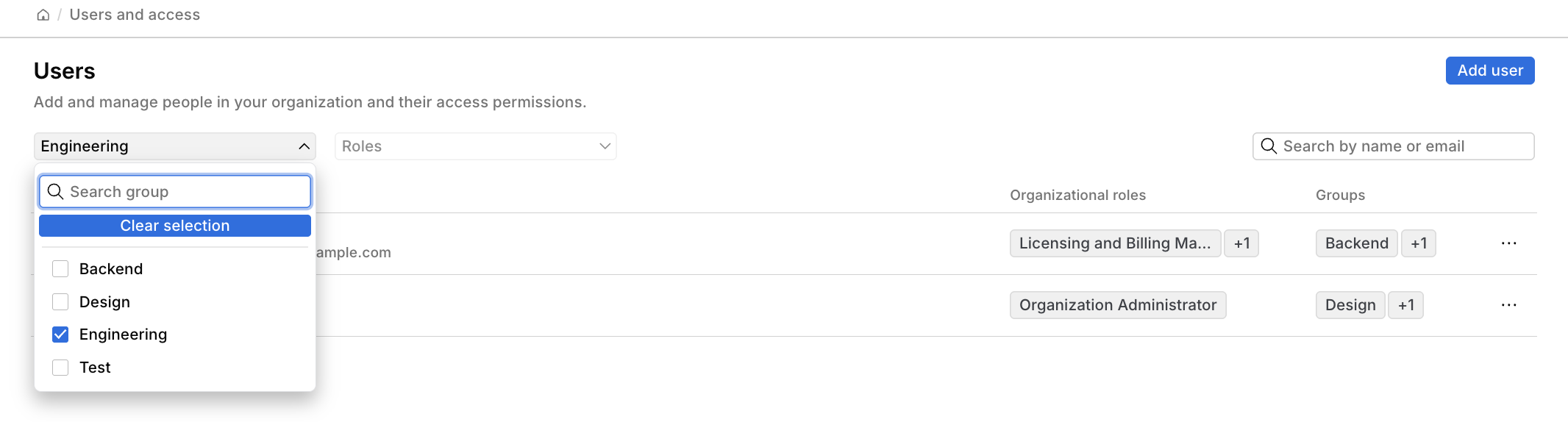
To filter by group, click Groups and select one or more groups. The list is alphabetical, with subgroups listed as separate entries rather than nested under their parents. To find a group, type any part of its name in Search group. A group you already selected stays selected while you search, so you can pick groups across several searches.
The following screenshot shows the Groups filter open, with Engineering selected:
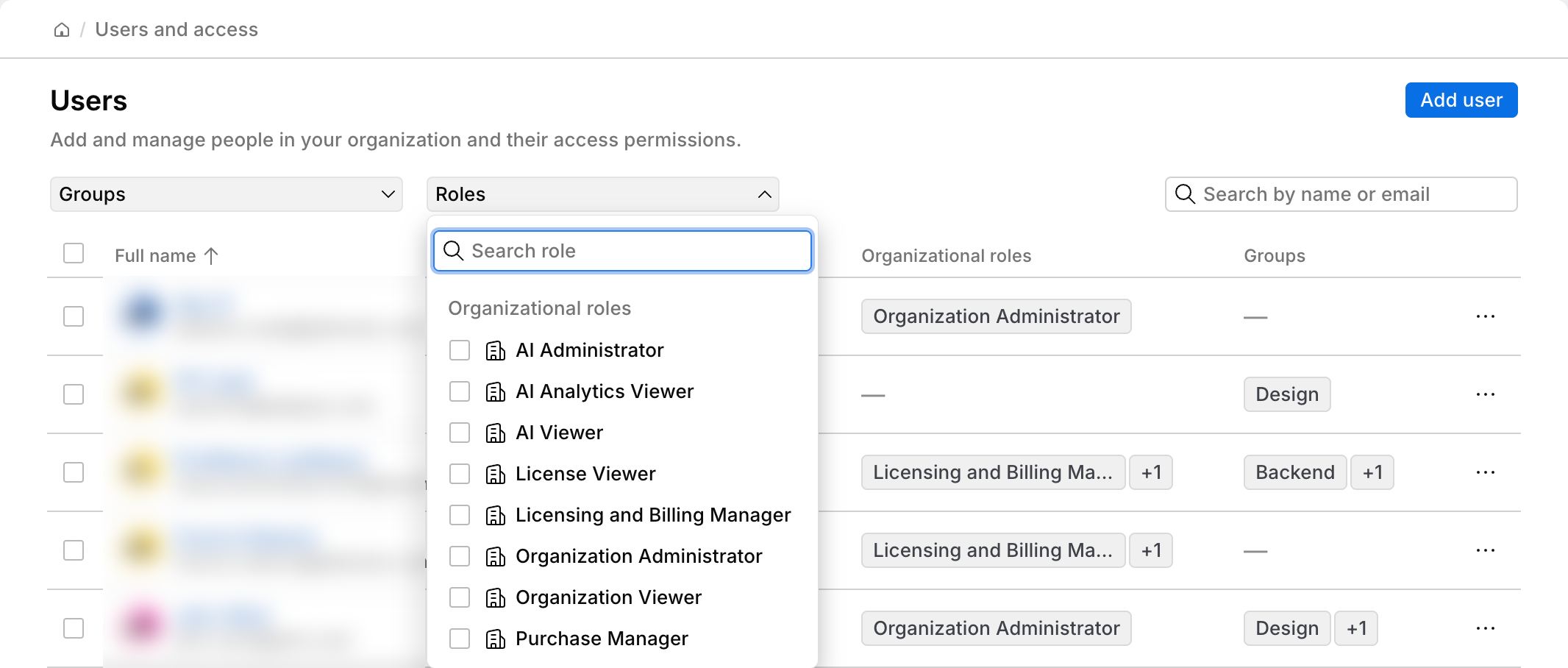
To filter by role, click Roles and select one or more roles. The list is alphabetical and shows organization roles only, grouped under Organizational roles. To find a role, start typing its name in Search role.
The following screenshot shows the Roles filter open, with no roles selected:
The table updates to show the matching users. When you select more than one item, the filter shows the first one you selected and a counter, for example Design +1.
(Optional) Use the search field to filter the results by name or email.
This helps when a group or a role covers many people and you need to reach one of them.
To clear a filter, open it and click Clear selection.