AI analytics
The AI analytics section in JetBrains Console provides insight into various AI-related metrics that can help you understand the extent of AI adoption in your organization, AI activity and its impact, and the AI usage volume per AI consumer. The metrics provided within AI analytics are grouped into the following segments, each available as a separate page in the AI analytics section:
Adoption and usage: Lets you track AI adoption and engagement over time. Provides details about the number of consumers who use AI features, the total consumption of AI credits, and the number of consumers who hit their AI credit limits.
Activity and impact: Lets you monitor the effectiveness of using AI within your organization. The metrics are both general values such as the overall code suggestion acceptance rate and the contribution of AI-generated code, or specific and more detailed information related to provided code suggestions and their acceptance rates.
Credit consumption: Lets you track the consumption of AI credits for using AI tools per AI consumer or per group, broken down by AI tool.
Providers and models: Lets you track token consumption in your organization, by AI provider and model.
Session explorer: Lets you inspect individual AI sessions across your organization, with details about who ran each session, which agents and models were used, session duration, and consumption.
Use these insights to track adoption trends, evaluate the impact of AI on your teams, identify users who may need additional AI credits or guidance, and look into individual AI sessions.
In addition to being presented as charts in JetBrains Console, the metrics are also available through the Analytics API.
Key measurement units
Most metrics within different analytics segments in Air Governance use the following measurement units:
AI credit: The basic unit that is used to track and charge the use of AI tools and features powered by third-party LLM providers. For more information about what AI credits are, see AI credits.
Line of code: A single line of source code. In the context of analytics in Air Governance, represents a line of code that a user or AI tool produces, modifies, or deletes.
Token: A small unit of text that models read and process. Tokens are used as a unit to measure the usage of AI providers and models in the Providers and models analytics segment.
Session: A single run of an AI agent, reported by the agent with a session ID. Sessions are the unit of data in Session explorer.
Some metrics use the number of chat messages sent or the number of shown suggestions to measure activity and interactions with AI tools and features.
Sources of analytics data
The data displayed in the charts within the AI analytics section in Air Governance is collected from the following sources:
Data from JetBrains services that keep track of AI credits. This includes information about remaining AI credits, credit limits, consumption, and other information related to AI credits spent for the use of AI tools and features. This data is mostly used in the Adoption and usage and Credit consumption segments.
Data from IDEs and plugins. This data includes information about generated code suggestions and their acceptance or rejection, as well as the number of interactions with AI tools and features. The collected data is mainly used for metrics in the Activity and impact segment. For IDEs and plugins to provide this data, they must meet the following version requirements:
IDE version 2025.3.0 or later
AI Assistant version 2025.3.0 or later
Junie version 253.487.77 or later
Data visibility
Every user in your organization can view their own analytics data by default, without any analytics-related permission. To view analytics data for other users and service accounts, you need to be assigned a role that includes the View AI analytics or Manage organization permission.
Your own analytics data
If you don't have the View AI analytics or Manage organization permission, all the data you see is your own, so Air Governance hides or restricts the parts of the AI analytics section that are meaningful only when the data covers more than one AI consumer:
The Credit consumption page isn't available. To track your own spending, use the AI credit consumption chart on the Adoption and usage page.
The filter that selects principals is set to you and can't be changed on the remaining AI analytics pages: Adoption and usage, Activity and impact, Providers and models, and Session explorer.
The Initiated by column isn't shown in Session explorer, because every session in the table is your own.
Permissions from all roles assigned to you, directly or through groups, are combined. If any of your roles includes the View AI analytics or Manage organization permission, you see all pages, filters, and columns.
View AI analytics
When a role includes the View AI analytics permission, it can apply to the entire organization or to specific groups. Depending on the scope of the role, you can see the following analytics data:
Organization-wide role: See analytics data for all users and service accounts in your organization.
Group-scoped role: See analytics data only for members of the groups that the admin selected when assigning the role to you, including their subgroups.
For more information about the View AI analytics permission and the default roles that include it, see View AI analytics.
For general information about the available scopes that can be covered by a role, see Role scopes.
View AI analytics (self)
The View AI analytics (self) permission lets you see only your own analytics data. Because every user can view their own analytics data by default, you don't need this permission to access the AI analytics section. What you see is described in Your own analytics data.
Manage organization
The Manage organization permission lets you manage everything in Air Governance, which includes access to analytics data for all users and groups in your organization. For more information about the permission and the default roles that include it, see Manage organization.
Downloading data
You can download data from any chart or table in the AI analytics section as a CSV file. The download button opens a dialog where you select the data to include in the file. The filters available in the dialog depend on the chart or table whose data you download, and the file includes only data matching the filters you set.
The filters in the dialog apply only to the download, so the file can contain different data from what the chart or table shows. If the matching data spans multiple pages of a table, the file includes the data from all pages.
Download chart or table data
Do one of the following:
Next to the chart or table whose data you want to download, click
 .
On a page that shows a single chart or table, such as Session explorer, click
 in the top-right corner.
In the dialog that opens, adjust the filters to select the data that you want to download.
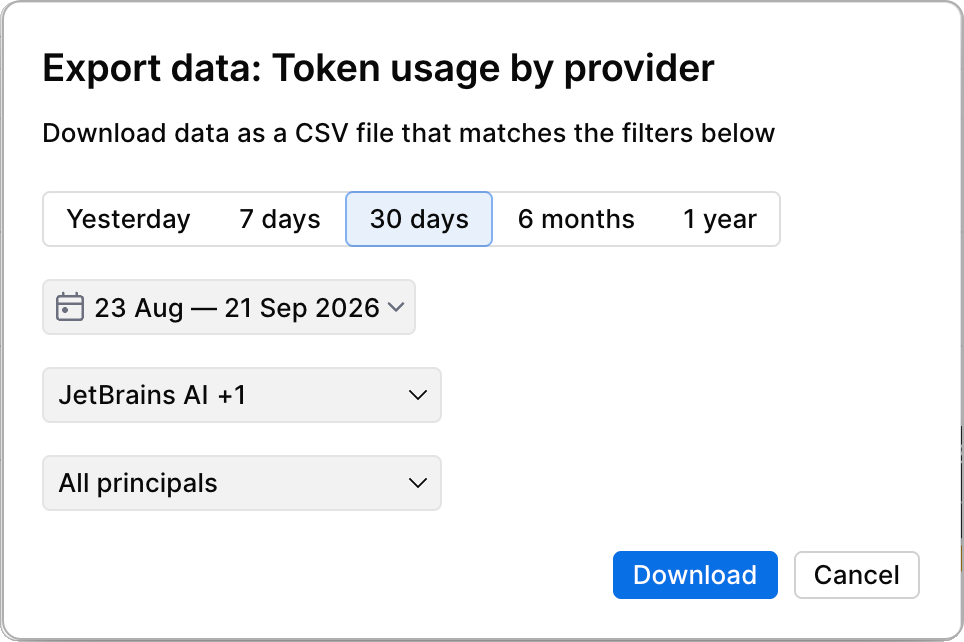
The dialog is prefilled with the filters currently applied to the page. It includes the time range filter, which is always present, plus any filters specific to the chart or table, such as tool, agent, or principal filters. If no data matches the filters you set, the dialog shows an error.
In the dialog, click Download.
The data matching the filters you set in the dialog is downloaded as a CSV file. When you download data from a sortable table, the file follows the sort order applied to the table.
API access
The Analytics API provides programmatic access to AI usage data for your organization. Use it to retrieve metrics on AI adoption, activity, credit consumption, and model and provider usage. For example, you can use the Analytics API to integrate analytics into your own dashboards or reporting pipelines.
Requesting additional analytics and providing feedback
If your organization needs more data, or you have ideas about the data and metrics, share them by following the steps below.
Send a request or submit feedback
At the bottom of any analytics page, click Share feedback.
Complete the form by adding the request or feedback that you want to share.
Click Send feedback. Your request is sent for review and processing.